

So you’ve created a template in Obsidian (if you have not yet, check out the official documentation for how to create a template). However, applying the same template every time to each new note becomes tedious. Here’s how to create new notes with a template already applied:
- Open Obsidian settings from the gear icon located on the bottom left

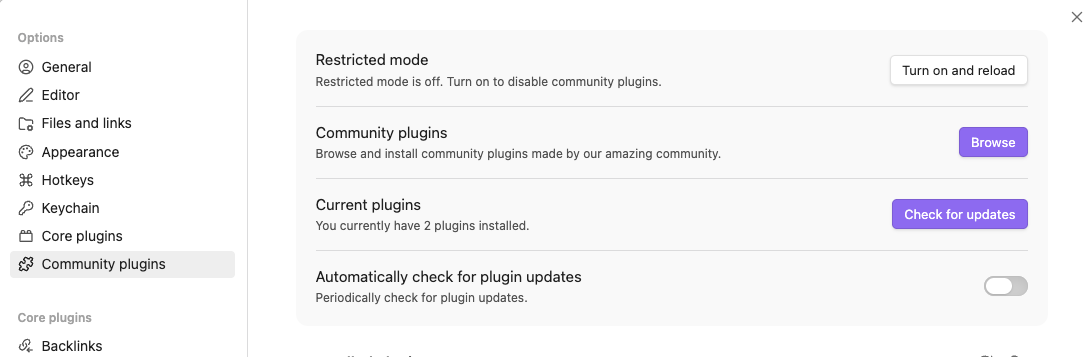
- Open the community plugins options tab, and select Browse.
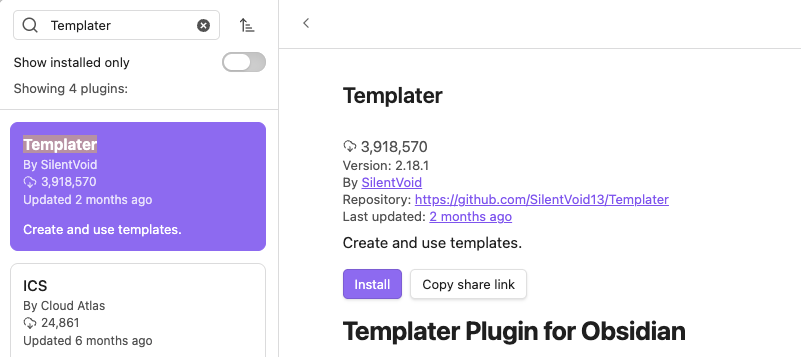
- Search for the “Templater” plugin. Install and enable it.
- Go into the Templater plugin settings, and enter your template folder location

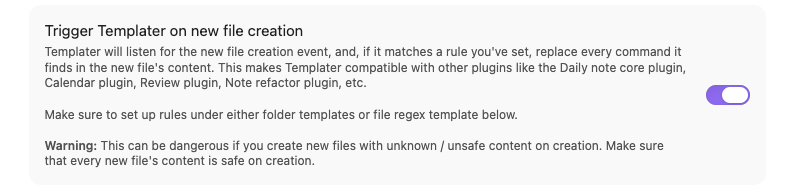
- Enable Trigger Templater on new file creation
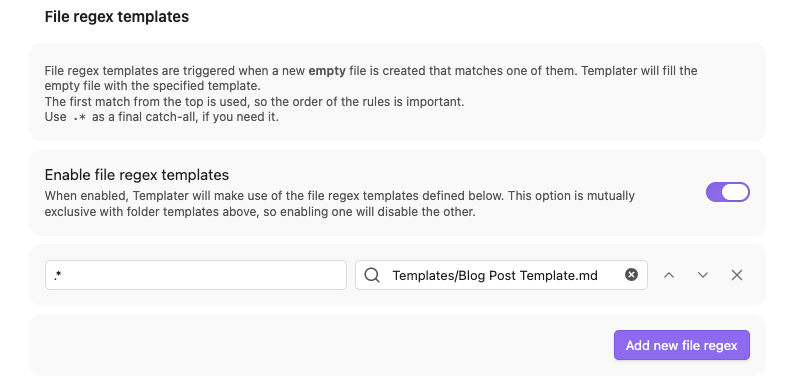
- Enable file regex templates. Leave the file regex on the left side as is to apply the template to every new note. 1 On the right side, select the template you want to use.
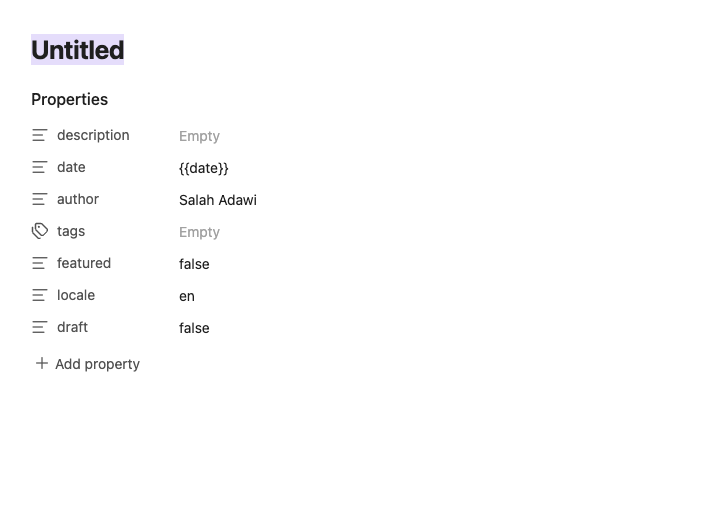
- Done! Try creating a new note, the template should now be applied automatically.
Also check out How to sync Obsidian between devices for free.
Footnotes
-
Alternatively, you can use regex notation to apply the template only to specific new notes. ↩